Miruyaku: Screen Translator › How to use ・ 日本語
Watch Twitch streams with real-time translated subtitles on iPhone
Miruyaku: Screen Translator is an iPhone app for watching a Twitch stream in a language you don't speak: open the stream in Miruyaku's Translate Browser and real-time translated subtitles follow the streamer, even when the stream has no captions. Free, no time limit (ad-supported), iOS 26 or later. Miruyaku: Screen Translator is an iPhone app with a built-in Translate Browser: open a Twitch stream in it, and real-time translated subtitles follow what the streamer says.
Follow a Japanese, Korean or German stream with English subtitles, or with subtitles in French, Italian, Chinese and other languages. Show the translation only, the original and translation, or the original only, and have the translation read aloud.
Free to use. There is no limit on how many times, how long, or how much text you translate. No account needed. The app shows ads (an optional ad-free purchase is available).
It needs an iPhone with iOS 26 or later.
iPhone with iOS 26 or later and Miruyaku 1.9.1 or later. Language data is added the first time you use a language. Android version: Android 10 or later (some features are iPhone only). On Android, Ad-Free is also 1 Month, 1 Year or Lifetime. This use is available only in the iPhone version (not in the Android version).
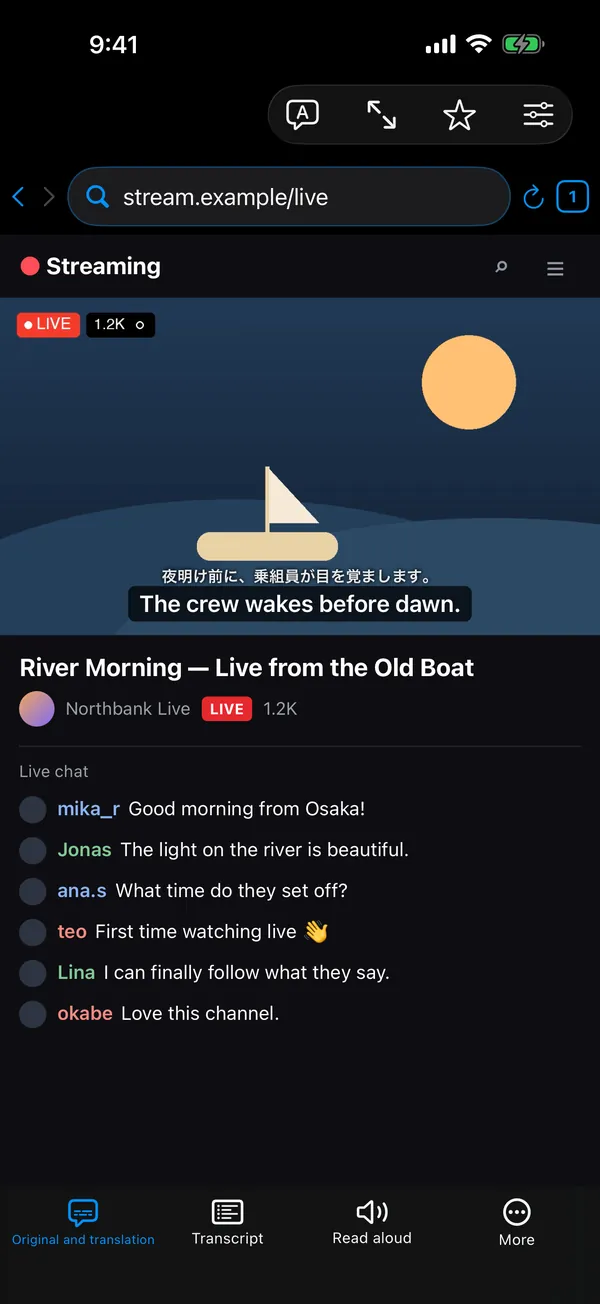
The picture shows a sample stream opened in the Translate Browser (for illustration only; it is not a screen of any service).
How it compares with other ways
| Way | Where | Live streams | Translation | Price |
|---|---|---|---|---|
| Miruyaku | Twitch streams opened in the Translate Browser on iPhone (iOS 26 or later) | Yes | Into English, Japanese, Korean, Chinese and others | Free, no time limit (ad-supported) |
| Twitch closed captions | Only streams where the streamer provides captions | Depends on the streamer | Depends on the streamer | Free |
| Browser extensions on a computer | A computer | Most can | Yes | Free tiers are usually time-limited |
Rows other than Miruyaku describe how that kind of method generally works; individual services and extensions differ.
Steps
Open it in the Translate Browser
- Open Miruyaku and tap "Translate Browser" on Home.
- In "Search or enter a URL", type the address of the Twitch stream, or search for it. If Twitch is in "Favorites", you can open it from there.
- From Safari, tap "Share" and choose "Miruyaku" to open the same page in the Translate Browser. If you copied the address, tap "Favorites", then "Open copied URL".
- Play the video. A subtitle bar appears below the video, and translated subtitles follow the speech.
- Use the button at the left of the bar (the subtitle menu) to choose "Translation only", "Original and translation", "Original only" or "Off". "Transcript" lists the subtitles with timestamps; "Read aloud" speaks the translation.
- If the language is wrong, open "Language" in the subtitle menu and set "Video language" and "Target language". If the voice and the subtitles drift on a live stream, open "More", then "Settings" (Subtitle settings), and check that "Play live streams with a slight delay" is on (it is on by default).
- If a message says subtitles can't be made for this video, tap "Translate with Live Translation" or "Try the PC version" in the message (these may still work).
Use it with a video playing in another app (Live Translation, audio)
- Open Miruyaku. On Home, under "What Live Translation translates", choose "Audio", then "App Audio".
- Tap the "Live Translation" card. On the "Start Live Translation" screen, pick the "Video language" if you know it (with Auto, the first subtitles come a little later).
- Tap "Start". In the iOS menu that appears, select "Miruyaku", then tap "Start Broadcast" (iOS requires you to start screen broadcasting yourself).
- When the small window appears, switch to the app you want and play the video. Translations of what is being said appear as subtitles in the small window. To stop, tap ✕ in the small window.
- Some apps don't pass their sound to Live Translation. If no subtitles appear, use the Translate Browser steps above.
Good for / tips
- On a new install, Twitch is already in "Favorites". Open it from there and look for the stream you want.
- If no subtitles appear, reloading the page can help: tap ⟳ (Reload) to the right of the address field at the top. If the message "Subtitles haven't been generated yet" appears, tap "Reload" in the message.
- It suits streams where people keep talking, such as gaming and chatting streams.
- Speech can be recognized in 30 languages, such as English, Korean, German and Russian. If the language is detected wrongly, pick the "Video language" under "Language" in the subtitle menu.
- If a streamer's language setting differs from the language actually spoken, subtitles can go wrong. Pick the "Video language" under "Language" in the subtitle menu.
- If you pick the "Video language" yourself, subtitles start in that language the next time you open the same streamer.
What it can't do / requirements
- Works on an iPhone with iOS 26 or later and Miruyaku 1.9.1 or later.
- The first time you use a language, speech data (up to about 200 MB per language for English, Japanese, Korean, Chinese and some others, and up to about 350 MB for some other languages) and translation language data are added. You see the size before you add them.
- Speech can be recognized in 30 languages (Japanese, English, Korean, Chinese, French, German, Spanish, Italian and Portuguese, plus others such as Russian, Thai, Vietnamese, Arabic, Indonesian and Turkish). Translate Browser subtitles can be translated into English, Japanese, Korean, Chinese, French, German, Spanish and some other languages (not every language listed under "Language" in the subtitle menu).
- For copy-protected videos, subtitles can't be made. "Translate with Live Translation" or "Try the PC version", offered in the message that appears, may still work.
- Some streams and videos can't be subtitled. It does not work with every stream.
- Subtitle speed depends on the iPhone model and the language.
FAQ
Can I watch a Japanese or Korean Twitch stream with English subtitles?
Yes. Open the stream's page on Twitch in Miruyaku's Translate Browser and play it: translated English subtitles follow the speech. It has been tested: subtitles and translations appear (iPhone 14 Pro, iOS 26.6, Miruyaku 1.9.1).
Which languages can the stream be in?
Speech can be recognized in 30 languages, such as English, Korean, German and Russian. You can choose the target language: English, Japanese, Korean, Chinese and others. If the language is detected wrongly, pick the "Video language" under "Language" in the subtitle menu. It has also been tested with a stream in French, with Japanese as the target language: subtitles and translations appeared (iPhone 14 Pro, iOS 26.6, Miruyaku 1.9.1).
Can I use it with a stream I'm watching in Safari or in another app?
From Safari, tap "Share" and choose "Miruyaku" to move the page into the Translate Browser. For a video playing in another app there is Live Translation (audio). Some apps don't pass their sound to it.
Can I do this with just one iPhone?
Yes. The stream plays inside the Translate Browser and the subtitles appear on the same screen. You don't need a second device.
Is it free? Is there a limit on time or number of uses?
Free to use. There is no limit on how many times, how long, or how much text you translate. No account needed. The app shows ads (an optional ad-free purchase is available). Full-screen ads appear only at breaks between translations, never while you are watching a video.
How far behind are the subtitles?
Translated subtitles follow the speech as it happens. Subtitles and standard translation are both produced on the iPhone, so there is no round trip to a server. Speed depends on the iPhone model and the language. If the voice and the subtitles drift on a live stream, check that "Play live streams with a slight delay" is on in Subtitle settings (it is on by default): playback is held a few seconds so the two line up, which puts you slightly behind the live edge.
Is what I watch sent anywhere?
Pages and videos you open in the Translate Browser load directly from the site to your iPhone, the same as in any browser. Subtitles and standard translation are produced on the iPhone, and the audio and picture are not sent to the developer (the developer has no servers). The developer does not learn which sites you open.
More details
Other services
- Turn YouTube video and live stream audio into translated subtitles on iPhoneFollow YouTube videos and live streams with translated subtitles as people speak
- How to watch Kick streams with real-time translated subtitles on iPhoneFollow Kick streams with translated subtitles as the streamer speaks
- How to watch VTuber streams with real-time translated subtitles on iPhoneFollow a Japanese-speaking VTuber's stream with translated subtitles
- Watch Korean live streams with real-time translated subtitles on iPhoneFollow a Korean live stream with translated English subtitles as people speak
- How to watch game streams with real-time translated subtitles on iPhoneFollow game streams in another language with translated subtitles
How to use it, by situation
- Translate a game's on-screen text on iPhone or Android while you playRead game dialogue and menus in a floating window as you play
- Translate manga and webtoons on your iPhone or Android phoneScreenshots get translations in the bubbles; scrolling gets a floating window
- An app that translates live streams and videos in real time on iPhoneTranslated subtitles on videos and live streams as people speak
- Translate menus and signs with your iPhone camera while travelingPoint the camera and the translation sits over each line
- Talk face to face with someone who speaks another language, using one iPhoneFace-to-face translation where the other person never presses a button
- Translate an iPhone screenshot with the text kept in placeTranslations drawn where the text was, or the current screen with a back tap
- Add translated subtitles to a video on your iPhone and save itSubtitle a video from Photos or Files and save it with them burned in
- Practice a language's pronunciation with the subtitles of videos and live streams you watchUse translated subtitles and conversations as lessons: hear a model voice and say it yourself
Service and product names on this page are trademarks or registered trademarks of their respective owners. Miruyaku is an independent app. It is not provided, endorsed or sponsored by, or affiliated with, any of these services. Please use each service in line with its own terms.