Live Screen & Voice Translate › How to use ・ 日本語
Translate menus and signs with your iPhone camera while traveling
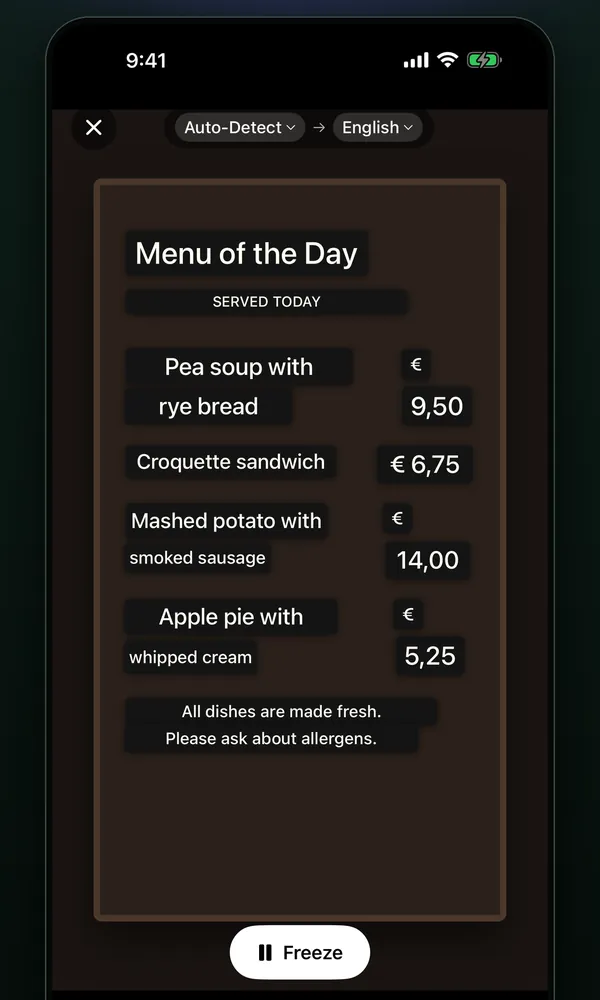
Point Camera Translation in the free iPhone app Live Screen & Voice Translate (Miruyaku) at a sign, a menu or a product label and the translation is laid over the original lines. Each line is translated separately, so a menu's list stays readable as a list.
Standard translation runs on the iPhone, so once the language data is downloaded it works where there's no connection. It works on iOS 18 or later.
Free to use (banner ads; optional monthly subscription removes ads). iPhone with iOS 18 or later (some features need iOS 26 or later).
Steps
Before you leave
- Where you have a connection, translate something in the language of your destination once. Each language's data is downloaded the first time, and after that it works offline.
At your destination
- Tap Camera Translation on the Miruyaku home screen and point it at the text.
- For small text, tap the screen to set focus and exposure, and pinch to zoom (up to 8x).
- Freeze stops the image so you can zoom in with your fingers. While frozen, Read as text shows the translation as running text, and Resume returns to the camera.
Good for / tips
- The translation's color, weight and typeface style (serif or not) are taken from the original text, so headings and items on a menu stay distinct.
- Vertical signs are overlaid vertically when the target is Japanese, Chinese or Korean, and rotated 90 degrees along the original column for other languages.
- Use the light in the dark; macro switches on automatically for close text. Double-tap to switch between 1x and 2x.
- When you close the camera, one image and the lines read are kept in History, so you can look back at a menu later.
- To talk with staff, use Conversation Translation in the same app (iOS 26 or later).
What it can't do / requirements
- There's no shutter or save button (one entry is kept in History when you close it).
- Indian scripts such as Hindi, and Greek, Hebrew, Persian, Urdu and Georgian scripts can't be read.
- Languages Apple's translation doesn't cover use Google's on-device translation data (about 30 MB), downloaded the first time you choose them.
- When the source language is Auto-Detect, the app waits until it can identify the language before translating.
FAQ
Is there a translation app that reads signs and menus while traveling? Does it work offline?
Camera Translation in Live Screen & Voice Translate (Miruyaku) lays the translation over the original lines when you point it at signs, menus or product labels. Each line is translated separately, so menu lists stay readable. Tap the screen to focus on small text. Standard translation runs on the iPhone, so with the language data downloaded in advance it works where there's no connection.
Can it translate vertical signs?
Yes. The translation is laid along the original vertical column — vertically when the target is Japanese, Chinese or Korean, and rotated 90 degrees for other languages.
Can I save what I translated?
There's no shutter or save button, but when you close the camera one image and the lines read are kept as one entry in History. History can be searched in both the original and the translation, and photo and camera entries can be shared as an image with the translation laid over it.
More details
Other situations
- Translate a foreign game on your iPhone while you playRead game dialogue and menus in a floating window as you play
- Translate manga and webtoons on your iPhoneScreenshots get translations in the bubbles; scrolling gets a floating window
- Watch foreign videos and live streams with translated subtitlesTranslated subtitles on videos and live streams as people speak
- Talk face to face with someone who speaks another language, using one iPhoneFace-to-face translation where the other person never presses a button
- Translate an iPhone screenshot with the text kept in placeTranslations drawn where the text was, or the current screen with a back tap
- Add translated subtitles to a video on your iPhone and save itSubtitle a video from Photos or Files and save it with them burned in