Live Screen & Voice Translate › How to use ・ 日本語
Watch foreign videos and live streams with translated subtitles
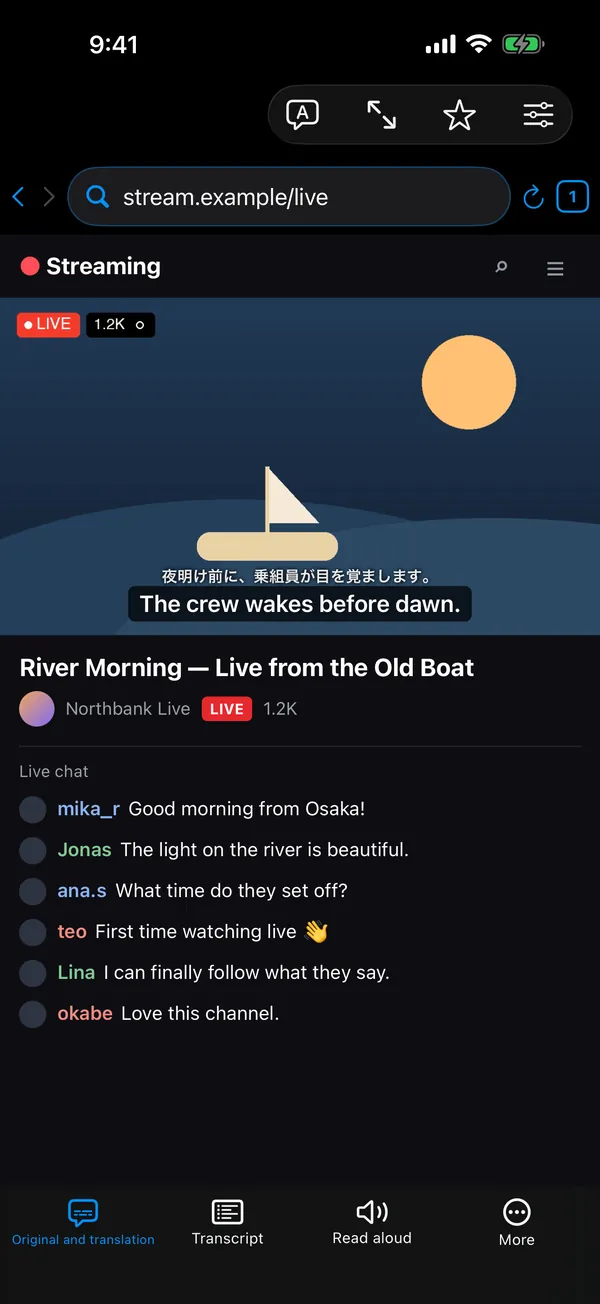
Open a video or live stream page in the Translate Browser — the browser inside the free iPhone app Live Screen & Voice Translate (Miruyaku) — and translated subtitles appear over the video as people speak.
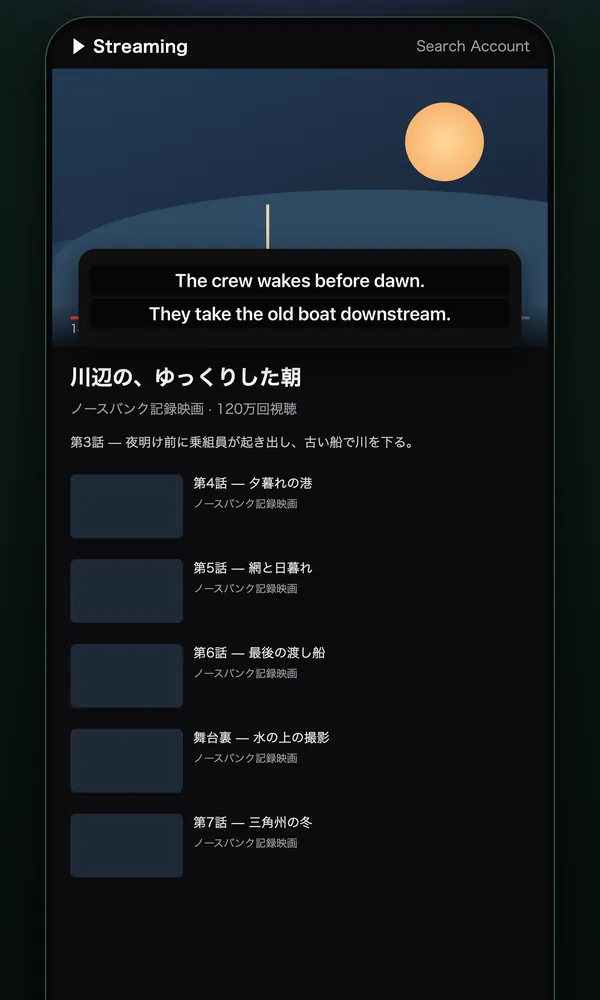
For a video playing in another app, Live Translation (audio) listens to the sound and shows the translation as subtitles in a floating window. Both need iOS 26 or later, and speech is recognized on the device.
Free to use (banner ads; optional monthly subscription removes ads). iPhone with iOS 18 or later (some features need iOS 26 or later).
Steps
In the app's browser (Translate Browser)
- On the Miruyaku home screen, open Translate Browser and search for a site or video, or type an address. Sending a video page's URL to Miruyaku with Share from a video app or browser opens it with subtitles right away.
- Play the video and subtitles appear. Use the buttons below to switch the display, open the transcript or turn on read aloud.
In your usual video app (Live Translation, audio)
- Under "What Live Translation translates" on the home screen, choose Audio. Tap Live Translation, then Start, and in the iOS menu choose Miruyaku and Start Broadcast.
- Switch to the app you want and play the video. Translations flow in the floating window. Tap ✕ on the window to finish.
Good for / tips
- In the Translate Browser, audio the player has already loaded is transcribed ahead on the device, so subtitles keep pace with the speech.
- Choose the subtitle source: Auto, from the audio, or the video's own captions. On Auto, existing captions are translated if the video has them.
- Show the translation only, original and translation, or the original only; text size small, medium or large; position below, above or outside the video.
- The Transcript is a timestamped list; tap a line to jump to that moment. Export it as text or SRT.
- Read aloud speaks the translation, and you choose what happens to the video's own sound (for example, lowered only while reading).
- Text inside the video, such as slides and captions burned into the picture, can be translated in place too (read once per second).
- Live Translation can detect the language automatically: it decides in the first 8 seconds and keeps checking every 12 seconds.
What it can't do / requirements
- Requires iOS 26 or later. Speech data (up to about 200 MB per language) is downloaded the first time.
- Speech can be recognized in 10 languages — Japanese, English, Korean, Chinese (Simplified and Traditional), French, German, Spanish, Italian and Portuguese — plus 20 more, such as Russian, Thai, Vietnamese, Arabic, Indonesian and Turkish, for subtitles and Live Translation of audio only.
- For copy-protected videos, the Translate Browser can't prepare subtitles ahead; the app points you to Live Translation or the desktop version.
- Apps that block audio capture may not provide sound to Live Translation. Microphone can't be used while earphones are in use, or for sound played by the same iPhone.
- Subtitle speed depends on the iPhone model and the language. Fast-moving or very small text may not be read.
FAQ
How can I watch a foreign video or live stream with no subtitles, with translated subtitles on iPhone?
Live Screen & Voice Translate (Miruyaku) has two ways. (1) Open the video or live stream page in the app's Translate Browser and translated subtitles appear over the video as people speak; switch between translation only, original and translation, or original only, and have the subtitles read aloud. (2) For a video playing in another app, Live Translation listens to the audio and shows the translation in a floating window. Both need iOS 26 or later. Use (2) for videos where (1) can't make subtitles, such as copy-protected ones.
Can it translate a live stream in real time? How much delay is there?
Yes. Open the live stream in the app's browser and translated subtitles appear as people speak. The few seconds of audio the stream's player has already loaded are transcribed and translated ahead on the device, so subtitles rarely fall behind. Both steps run on the iPhone with no round trip to a server. Speed depends on the model and the language.
Does it record the video or audio?
No. Nothing is recorded. When you stop Live Translation, only the translated text is kept in History, which is stored only on this iPhone.
More details
Other situations
- Translate a foreign game on your iPhone while you playRead game dialogue and menus in a floating window as you play
- Translate manga and webtoons on your iPhoneScreenshots get translations in the bubbles; scrolling gets a floating window
- Translate menus and signs with your iPhone camera while travelingPoint the camera and the translation sits over each line
- Talk face to face with someone who speaks another language, using one iPhoneFace-to-face translation where the other person never presses a button
- Translate an iPhone screenshot with the text kept in placeTranslations drawn where the text was, or the current screen with a back tap
- Add translated subtitles to a video on your iPhone and save itSubtitle a video from Photos or Files and save it with them burned in