Live Screen & Voice Translate › How to use ・ 日本語
Translate an iPhone screenshot with the text kept in place
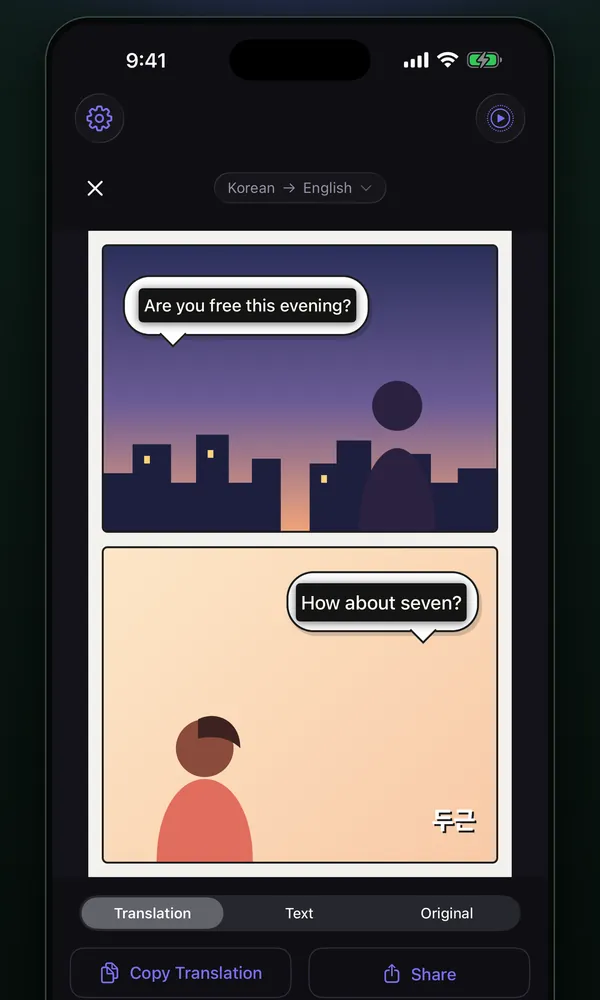
Choose a screenshot in Translate from Photo in the free iPhone app Live Screen & Voice Translate (Miruyaku): the text is read and the translation is drawn in the same position as the original.
Assign the Translate Screenshot shortcut to Back Tap, the Action button or Siri to translate whatever is on screen. It works on iOS 18 or later.
Free to use (banner ads; optional monthly subscription removes ads). iPhone with iOS 18 or later (some features need iOS 26 or later).
Steps
Translate a screenshot you already took
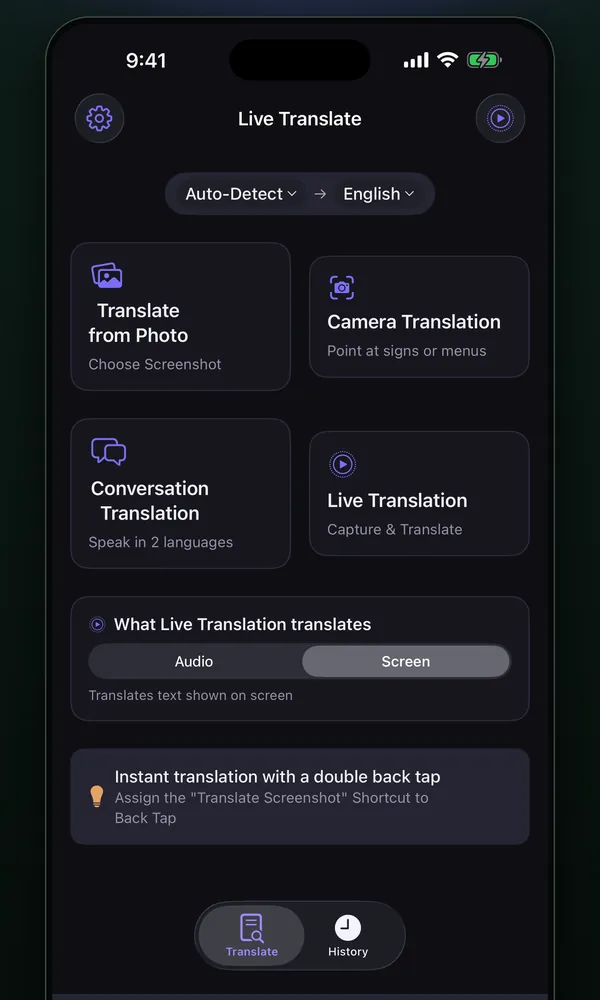
- Tap Translate from Photo on the Miruyaku home screen and choose the screenshot. You can also send one image to Miruyaku with Share from Photos or another app.
- Switch between Translation, Text and Original at the bottom.
Translate the current screen with a back double tap
- In Miruyaku's Settings, open How to Use & Shortcut Setup and add the Translate Screenshot shortcut.
- In iOS Settings, go to Accessibility → Touch → Back Tap and assign the shortcut to Double Tap (it can also go on the Action button or Siri).
- On the screen you want translated, tap the back of your iPhone twice; it is translated in the same view as Translate from Photo.
Good for / tips
- Translation lays the translation over the original spot and zooms from 4x to 12x. Text lists it paragraph by paragraph, and the numbered map jumps to a paragraph.
- Copy Translation copies the translation as text, top to bottom; Share produces a single image with the translation drawn in.
- If the language was guessed wrong, use Change Source Language and Retranslate.
- Good for foreign social media posts, or reading a foreign-language manual paragraph by paragraph.
- Translated photos are kept in History with the image, searchable in both the original and the translation (stored only on this iPhone).
What it can't do / requirements
- One image at a time. Opening images from Files and pasting images are not supported.
- Indian scripts such as Hindi, and Greek, Hebrew, Persian and some other scripts can't be read.
- Back Tap and the Action button work on iPhones that support them.
- To keep translating without switching screens, Live Translation (screen) is a better fit.
FAQ
Is there an app that translates the text on my iPhone screen as it is?
Yes — Live Screen & Voice Translate (Miruyaku). Choose a screenshot and the translation is laid over the original text in place. Assign the Translate Screenshot shortcut to the back double tap to translate the current screen right away. To keep translating while you use other apps, Live Translation in screen mode keeps the translation flowing in a floating window. Standard translation runs only on the device. It works on iOS 18 or later.
Are my screenshots sent anywhere?
Standard translation runs only on the iPhone, and photo contents are never sent to the developer's servers (the developer has none). Only if you register your own API key and choose an outside translation service is the text sent directly to that service.
Does it cost anything?
It's free, with no limit on translations or characters. A banner ad is shown at the bottom of the screen.
More details
Other situations
- Translate a foreign game on your iPhone while you playRead game dialogue and menus in a floating window as you play
- Translate manga and webtoons on your iPhoneScreenshots get translations in the bubbles; scrolling gets a floating window
- Watch foreign videos and live streams with translated subtitlesTranslated subtitles on videos and live streams as people speak
- Translate menus and signs with your iPhone camera while travelingPoint the camera and the translation sits over each line
- Talk face to face with someone who speaks another language, using one iPhoneFace-to-face translation where the other person never presses a button
- Add translated subtitles to a video on your iPhone and save itSubtitle a video from Photos or Files and save it with them burned in