Live Screen & Voice Translate › How to use ・ 日本語
Add translated subtitles to a video on your iPhone and save it
In the free iPhone app Live Screen & Voice Translate (Miruyaku), choose a video under Local videos (Photos/Files) in the Translate Browser: its audio is transcribed on the device and translated subtitles are added.
Tap Save with subtitles to create a new video with the subtitles you see burned in. The original video is never changed. It needs iOS 26 or later.
Free to use (banner ads; optional monthly subscription removes ads). iPhone with iOS 18 or later (some features need iOS 26 or later).
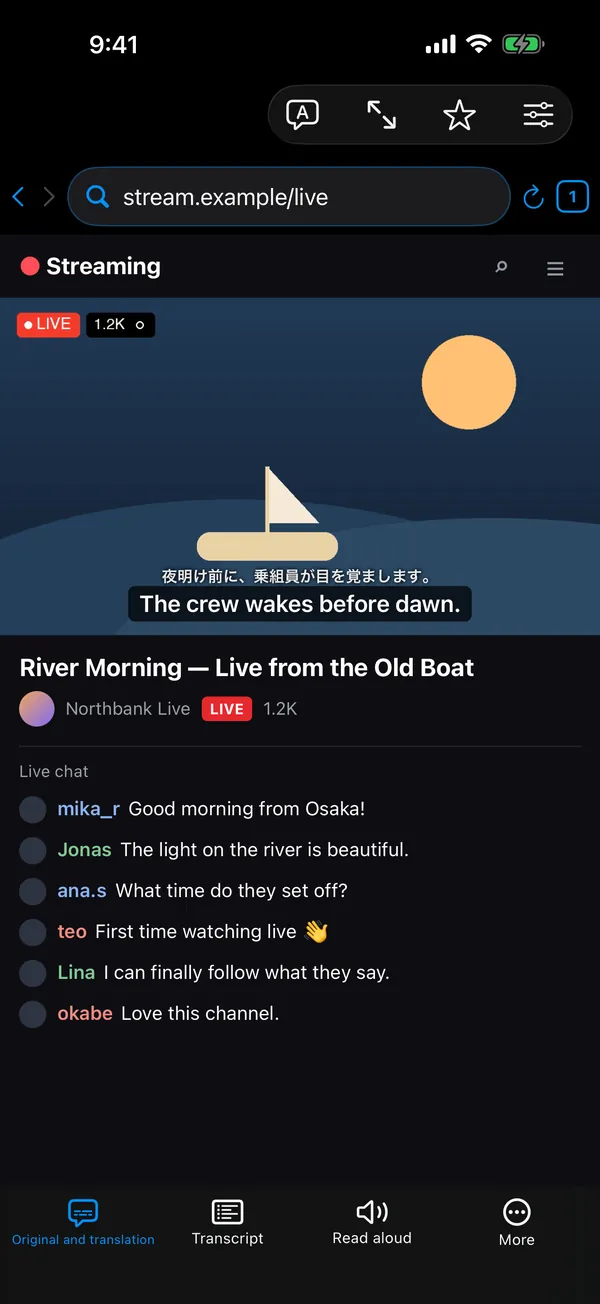
The picture shows subtitles in the Translate Browser. Local videos use the same subtitle display (translation only / original and translation / original only, size and position) on screen and when saved.
Steps
Add subtitles and save
- Open Translate Browser on the Miruyaku home screen and tap Local videos (Photos/Files) on its first screen (or in Favorites).
- Choose a video with Choose a video from Photos or Choose a video from Files.
- Check Video language (Auto is fine) and Target language. When transcription finishes, the app shows how many subtitles it made.
- Pick the display (translation only, original and translation, or original only), text size and position, then tap Save with subtitles. Save the new video to Photos or Files from the share sheet.
Good for / tips
- The saved subtitles look the same as on screen (translation only / original and translation / original only, size and position).
- The Transcript is a timestamped list; tap a line to jump there. Export it as text or SRT when you only need the subtitle text.
- Read aloud speaks the translation.
- Good for foreign-language videos you shot while traveling, or recordings of lectures from abroad.
What it can't do / requirements
- Requires iOS 26 or later. Speech data for a language you don't have yet is downloaded first (up to about 200 MB per language).
- Save with subtitles is available only after transcription finishes. Videos without audio, or in a language that can't be recognized, can't be subtitled.
- Some videos can't be exported.
- Subtitles come from machine speech recognition and translation, so they may contain mistakes.
FAQ
Is there an iPhone app that adds translated subtitles to a video and saves it?
Yes — Live Screen & Voice Translate (Miruyaku). In the Translate Browser, choose a video from Photos or Files under Local videos (Photos/Files): the audio is transcribed on the device and translated subtitles are added. Save with subtitles creates a new video with the subtitles burned in, which you can save to Photos or Files. It needs iOS 26 or later.
Does it change the original video?
No. Save with subtitles creates a new video file; the original is never changed.
Can I export just the subtitle text?
Yes. From the Transcript, export the timestamped subtitles as text or SRT.
More details
Other situations
- Translate a foreign game on your iPhone while you playRead game dialogue and menus in a floating window as you play
- Translate manga and webtoons on your iPhoneScreenshots get translations in the bubbles; scrolling gets a floating window
- Watch foreign videos and live streams with translated subtitlesTranslated subtitles on videos and live streams as people speak
- Translate menus and signs with your iPhone camera while travelingPoint the camera and the translation sits over each line
- Talk face to face with someone who speaks another language, using one iPhoneFace-to-face translation where the other person never presses a button
- Translate an iPhone screenshot with the text kept in placeTranslations drawn where the text was, or the current screen with a back tap