Miruyaku: Screen Translator › How to use ・ 日本語
Practice a language's pronunciation with the subtitles of videos and live streams you watch
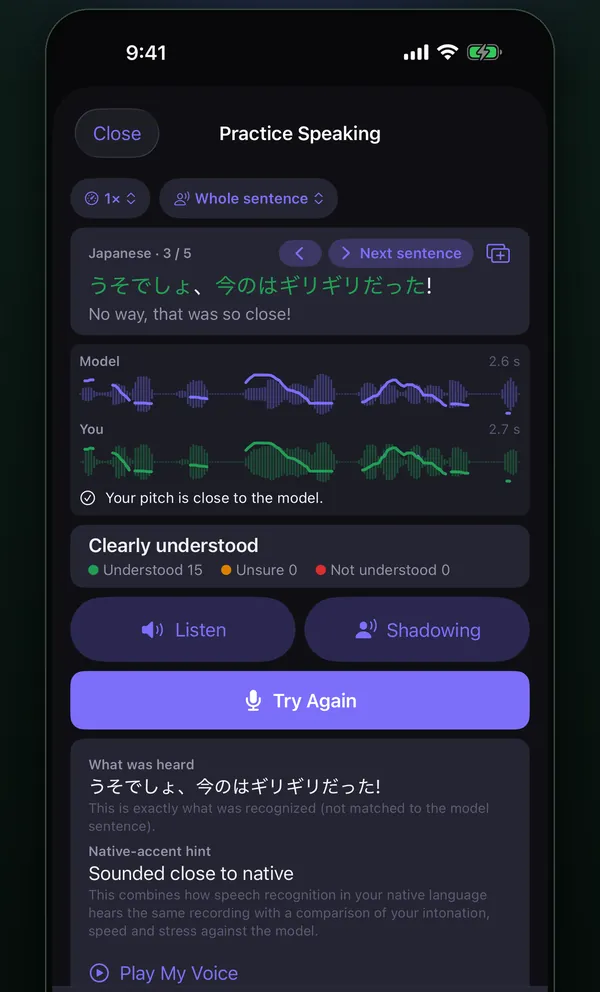
Miruyaku: Screen Translator, an iPhone translation app, has a Study switch at Home: turn on "Study" and what you translate becomes study material. Long-press a translated sentence and tap "Practice" to hear a model voice and say it yourself; words the on-device speech recognition understood are shown in green, unsure words in orange, and words it did not understand in red.
Subtitles translated in the Translate Browser or Live Translation are saved to History, and "Practice with this" on a History result lets you practice them one sentence at a time. Your voice and the model are compared by waveform and pitch line, and differences are explained in words (no score is given). You can practice 42 languages (speech is checked in 33), on iOS 26 or later.
iPhone with iOS 26 or later (study features). Android version: Android 10 or later (some features are iPhone only). On Android, Ad-Free is also 1 Month, 1 Year or Lifetime. Also available in the Android version (some steps and screens differ).

On Android? Speaking practice with your translated sentences works in Miruyaku for Android too (Android 10 or later, free on Google Play). See the steps on the Android page.
Steps
Practice with stream subtitles or conversations
- At Home, turn on "Study" next to the language selector.
- Translate a video or stream in the Translate Browser or Live Translation. The translated subtitles are saved to History.
- On a translation result in History, tap "Practice with this" to practice the subtitles or conversation one sentence at a time. If you stop partway, you can pick up where you left off.
- To practice just one sentence, long-press a translated sentence and tap "Practice".
Hear the model and say it yourself
- Tap "Listen" to hear the model. The speed can be 0.5×, 0.75× or 1×.
- Tap "Repeat Aloud" and speak. Understood words are shown in green, unsure words in orange, and words that were not understood in red.
- Compare the waveforms and pitch lines of the model and your voice, read the tips such as "You are speaking faster than the model", and tap "Try Again" to repeat.
Memorize and check yourself
- Keep words or sentences with "Add to word list" and memorize them with "Today's review", which brings items back at growing intervals (up to 2,000 items).
- Check yourself with quizzes ("Fill in the blank", "Word order" and "Listening", 10 questions per round). Questions come from your own translations, word list and the built-in sentences, and after answering you can practice saying the sentence.
Good for / tips
- Good when you would rather practice with phrases you actually heard in game streams or live streams than with textbook sentences.
- "Shadowing" works by whole sentence or one word at a time (one kana beat at a time for Japanese, one character at a time for Chinese), and the part being read aloud is highlighted.
- "Word by Word" shows each word's reading (hiragana for Japanese, pinyin for Chinese), part of speech and meaning, and can open the iOS dictionary.
- In 10 languages, including English, Japanese, Chinese and Korean, your speech is also checked by the speech recognition of your native language to give a rough sense of accent and whether it sounds monotone.
- Before a trip or for work, tap "Open Study" at Home and practice the 331 built-in sentences scene by scene (12 Everyday Conversation and 10 Business scenes).
- There is a daily goal (5, 10 or 20 a day) and a streak counter. No notifications are sent.
- The study features appear only when "Study" is turned on at Home; while it is off, the usual translation screens do not change.
What it can't do / requirements
- The study features need iOS 26 or later.
- You can practice 42 languages, and your speech is checked in 33 of them. The other 9 are for listening and reading only. The model voice plays when your device has a text-to-speech voice for that language.
- The colors are not a pronunciation score; they show whether the speech recognition understood you.
- Practice talking with AI works only on devices that support Apple Intelligence, with "Use the device's built-in AI" turned on in the app's settings, and in languages Apple Intelligence supports.
- Speech recognition, voice comparison and the AI conversation run on your device; your voice and conversations are not sent anywhere and are not saved. Downloading language data the first time needs a connection.
- Most of the built-in sentences were machine-translated and have not yet been checked by native speakers.
FAQ
Can I practice English or Korean pronunciation with the subtitles of videos and live streams I watch?
Yes. Subtitles translated in the Translate Browser or Live Translation are saved to History, and "Practice with this" on a History result lets you practice them one sentence at a time. Your voice and the model are compared by waveform and pitch line, and differences are explained in words. No score is given.
Does it give a pronunciation score?
No score is given. Each word you say is colored by whether the on-device speech recognition understood it (green), was unsure (orange) or did not understand it (red), and your voice and the model are shown one above the other as waveforms with pitch lines, with one to three differences explained in words, such as "You are speaking faster than the model".
Which languages can I study? Can it check whether my pronunciation is understood?
You can practice 42 languages, and in 33 of them (including English, Japanese, Chinese, Korean, Spanish, French and German) the app checks whether your speech was understood. The other 9 languages are for listening and reading only. Checking uses on-device speech recognition, and your voice is not sent anywhere.
More details
Other situations
- Translate a game's on-screen text on iPhone or Android while you playRead game dialogue and menus in a floating window as you play
- Translate manga and webtoons on your iPhone or Android phoneScreenshots get translations in the bubbles; scrolling gets a floating window
- An app that translates live streams and videos in real time on iPhoneTranslated subtitles on videos and live streams as people speak
- Translate menus and signs with your iPhone camera while travelingPoint the camera and the translation sits over each line
- Talk face to face with someone who speaks another language, using one iPhoneFace-to-face translation where the other person never presses a button
- Translate an iPhone screenshot with the text kept in placeTranslations drawn where the text was, or the current screen with a back tap
- Add translated subtitles to a video on your iPhone and save itSubtitle a video from Photos or Files and save it with them burned in
How to use it, by service
- Turn YouTube video and live stream audio into translated subtitles on iPhoneFollow YouTube videos and live streams with translated subtitles as people speak
- Watch Twitch streams with real-time translated subtitles on iPhoneFollow Twitch streams with translated subtitles as the streamer speaks
- How to watch Kick streams with real-time translated subtitles on iPhoneFollow Kick streams with translated subtitles as the streamer speaks
- How to watch VTuber streams with real-time translated subtitles on iPhoneFollow a Japanese-speaking VTuber's stream with translated subtitles
- Watch Korean live streams with real-time translated subtitles on iPhoneFollow a Korean live stream with translated English subtitles as people speak
- How to watch game streams with real-time translated subtitles on iPhoneFollow game streams in another language with translated subtitles
Service and product names on this page are trademarks or registered trademarks of their respective owners. Miruyaku is an independent app. It is not provided, endorsed or sponsored by, or affiliated with, any of these services. Please use each service in line with its own terms.